
Inspect the original, select the personal fields you want removed, create a separate cleaned copy and inspect that downloaded copy again. Keep useful orientation, colour and print information unless you deliberately choose otherwise. Metadata removal is only one part of sharing an image privately.
1. Find the information before deleting it
Start with the file you plan to share, not just a thumbnail or an app’s library view. Metadata can include location, capture time, camera or lens identifiers, author information, comments and generation settings. Similar information may appear in more than one field or container.
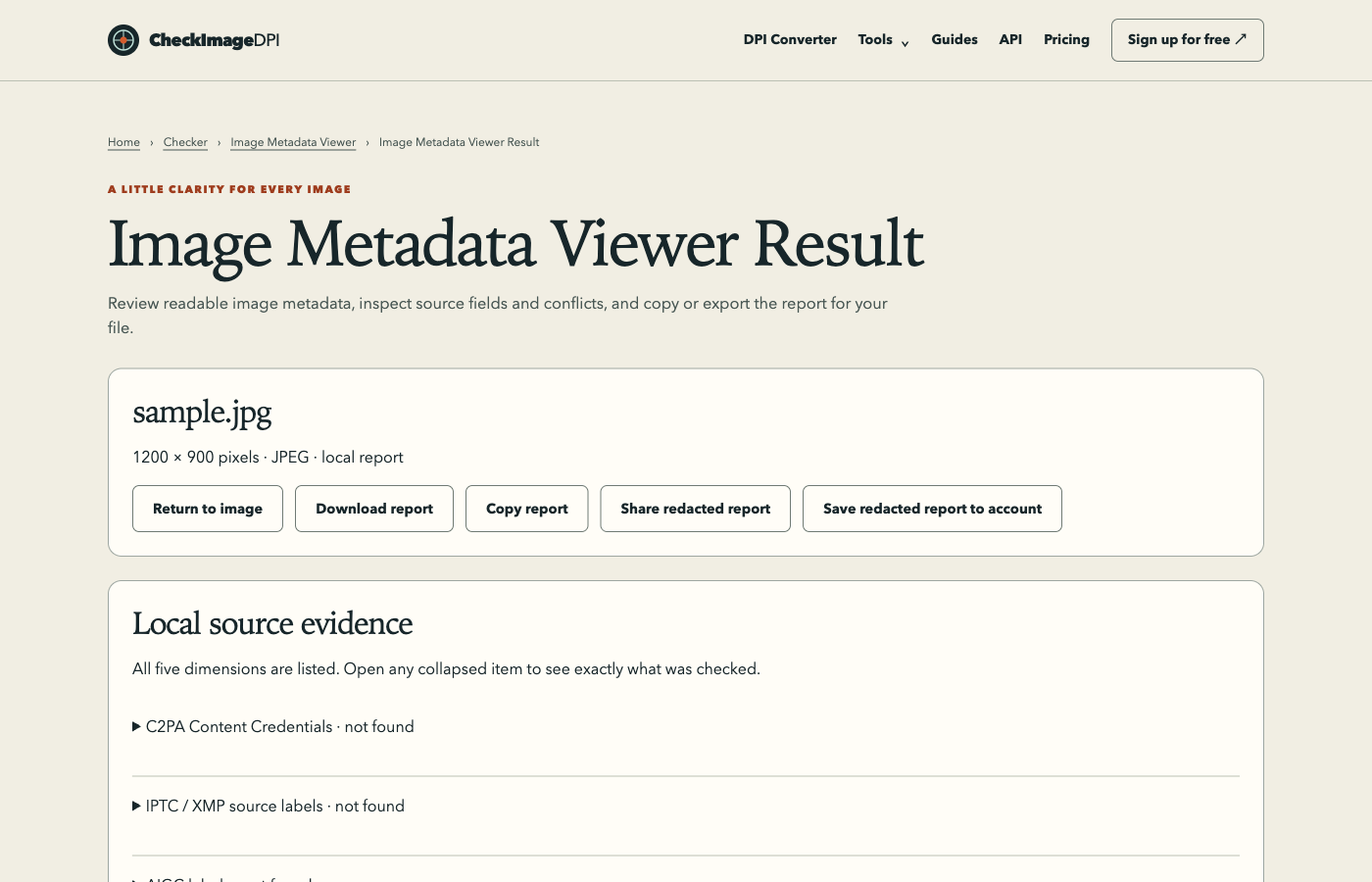
Use Metadata Viewer to identify the fields and their sources. Review sensitive values locally before copying a report into a public message. GPS coordinates and prompts are hidden by default because the report itself can become a new way to expose private information. A field missing from an app’s sidebar may still exist in the actual file.
2. Choose a privacy goal
Decide which information creates a risk in your situation. A location may matter when sharing a photo from home; serial numbers or personal comments may matter in a public portfolio. A capture date can be useful context, so you may prefer to keep it for a private archive while removing it from a public derivative.
Do not assume every metadata item is personal or disposable. Copyright and attribution can carry important information about permitted use. A colour profile or orientation instruction can affect how the image appears. Keep a private original so you can return to the full record if your requirements change.
3. Create a cleaned copy
Open Metadata Remover with the original and choose the categories to remove. Review the defaults for GPS, personal identifiers and comments, then inspect the preservation choices for colour, orientation, DPI and Content Credentials. Confirm the operation only after resolving any warning about an invalidated credential.
The output should be a separate file. Give it a name that makes the intended use clear, such as a public-share copy, and keep it apart from the original. If a file cannot be safely parsed or rewritten, treat the error as a failed operation. Renaming the file extension or downloading an empty result is not a successful clean-up.
Why orientation may need to stay
Some images store pixels in one orientation and use metadata to instruct a viewer to rotate them. Removing that instruction without rotating the pixels can produce a sideways or inverted image. In CheckImageDPI’s September 15, 2026 browser-primitive test, an Orientation 6 sample with a 3 × 2 stored grid displayed as 2 × 3 after orientation was applied.
That small fixture demonstrates a behaviour to check, not a guarantee about every file. After cleaning your own image, compare the subject’s orientation in the saved output and in the destination application. A metadata count of zero is not a useful success criterion if the resulting picture is wrong.
Colour profiles and density are functional metadata
An ICC profile can describe how the stored colours should be interpreted. Removing it may change appearance in colour-managed software. In the same browser investigation, a PNG re-encoding path dropped embedded colour information. This is why generic re-encoding is not automatically equivalent to a careful selective metadata remover.
DPI/PPI records also serve a purpose in print workflows. Removing them leaves the pixel grid intact but can change the default physical size another application suggests. If the image will be printed, preserve the needed density or document the intended size separately. Compare colour and geometry as well as the list of removed fields.
Handle Content Credentials deliberately
A signed provenance record can be tied to specific asset data. Editing covered information can make the binding fail even if a credential remains in the file. The local validation tests for this project produced a data-hash mismatch after modifying signed content, and no manifest after a separate credential-removal operation.
Keep the original when provenance matters. If you choose to remove the credential from a sharing copy, do not describe the derivative as preserving a valid original signature. Removing a source record is also not a method for proving human authorship or preventing all AI detection: pixel analysis and supported watermark checks are separate from ordinary metadata.
4. Inspect the actual downloaded copy
Reopen the exact output in Metadata Viewer. Confirm that the selected personal fields are absent and that the intended functional fields remain. Look for duplicates in other namespaces or an embedded thumbnail that may still carry unwanted details. Compare width, height, orientation and visible colour with the original.
If you are sharing through another service, check the final downloadable file where practical. An app may keep information in its library separately from the file, or transform the upload. Google Photos explicitly distinguishes its sharing/location controls from location information that can remain when a file is downloaded and sent outside the service. An app-level privacy switch is not always a file scrubber.
5. Review information outside metadata
The picture itself can reveal a face, an address, a screen, a badge or a recognizable location. A filename, caption or message can supply context that you removed from the metadata. Cropping or redacting visible information is a separate task; verify those edits just as carefully before sharing.
Also review the destination’s access controls. A private file sent through a public link can become accessible beyond your intended recipient. Keep sensitive originals out of public folders and remove temporary share copies when they are no longer needed. No metadata tool can guarantee anonymity from every visual clue, retained service record or copy already received by someone else.
Sources and method
Reviewed on September 15, 2026. Numerical examples are worked calculations, not measurements of your image. Linked product documentation describes the cited application or standard; CheckImageDPI examples and test observations are identified separately.
Frequently asked questions
Is deleting all metadata always safer?
It can remove useful orientation, colour and provenance information. Choose the fields that match your privacy goal and verify the result.
Does a screenshot remove everything sensitive?
A screenshot is a new file with its own metadata and can still show private visual information. It is not a universal privacy guarantee.
Can the original be recovered from the cleaned copy?
Do not rely on that. Keep a private original if you may need its metadata or provenance later.