
Use a file’s information panel when it exposes resolution, or inspect the original in your browser. Desktop and mobile photo applications show different subsets of metadata; an absent DPI field in an app does not prove the file has no density record.
Documentation and device verification status
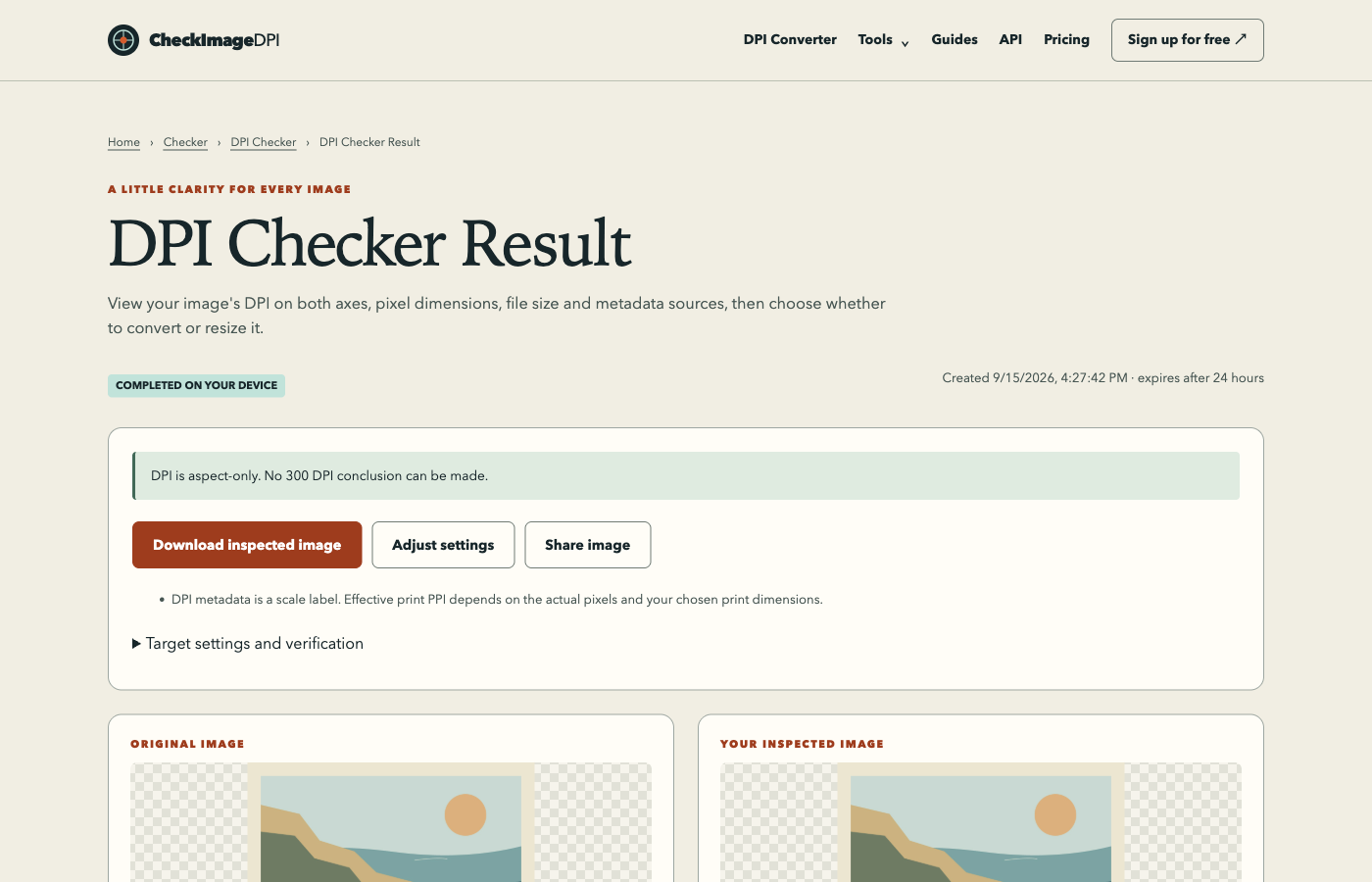
Documentation reviewed September 16, 2026. These platform instructions have not been tested on physical devices for this release. The browser illustration is a browser example, not a screenshot of macOS, Windows, iOS or Android. Actual device screenshots and version-specific checks remain pending.
| Platform | Documented method | Release verification |
|---|---|---|
| macOS Tahoe 26 | Preview → toolbar Info → Inspector | Official steps reviewed; device capture pending |
| Windows | Resolution property metadata; app UI varies | Property definition reviewed; UI steps and capture pending |
| iOS 26 | Photos → image → swipe up or Info | Official steps reviewed; device capture pending |
| Android / Google Photos | Photo details vary by app and version | Original-file/browser fallback; device capture pending |
Before choosing a device method
Find the actual file you will submit or print. A cloud thumbnail, messaging preview and original download can be different versions. If a phone offers a smaller export or a compatibility conversion, note that choice. Checking one version and delivering another makes the result difficult to reproduce.
Write down the filename and pixel dimensions. On shared computers, keep sensitive images out of screenshots used for support. A device information panel is a convenient first look, but it may reconcile conflicting fields or display only one density. Use a field-level report when the distinction matters.
Mac: inspect the image in Preview
Open the file in Preview. In Apple’s macOS Tahoe 26 documentation, click the toolbar Info button to open the Inspector, then use General Info or More Info. Use the information tabs that are available for that file, and record the dimensions and any displayed resolution. Close the inspector without editing when you only want to check.
For an intentional size change, Preview also has Adjust Size controls. Keep that editing task separate from inspection: changing a value and saving could alter the copy you meant to examine. A resolution shown by an application is still a reading of its selected fields, not an independent assessment of photographic quality.
Windows: distinguish a property from a complete report
Windows defines horizontal and vertical resolution properties, but the available UI and the fields exposed depend on the file type and the installed application. A Properties or image-information panel can be useful when it displays those values. Record the exact application and values; do not assume every format presents the same Details fields.
Microsoft’s documented JPEG metadata policy reconciles resolution values from different schemas. That helps explain why a single Windows value may differ from a tool showing all source records. If your panel shows only pixel dimensions, or you need to understand a conflict, open the original in the browser checker rather than guessing a missing DPI.
iPhone: use Photos information as a starting point
In Photos, open the image and swipe up or tap the Info button. Apple describes this panel as showing available information such as capture details, camera metadata, file size and location. The set depends on the item. Do not treat it as a guaranteed display of both DPI axes.
If the panel does not show density, use the browser file picker to choose the image or a saved original. Check the selected file’s dimensions after opening it. If the phone supplies a converted copy, the report describes that copy. Keep the source version when you need its original metadata or provenance.
Android: use the original, not a universal menu recipe
Android photo and file applications vary by manufacturer and version. An information or details view may expose dimensions, camera data and location, but there is no single verified menu sequence here that promises DPI on every phone. Do not install a random metadata app just to fill that gap.
Use the browser checker with the original file. If the image exists only in cloud storage, obtain the original through that service’s supported download workflow first. Avoid checking a screenshot of the cloud preview. Keep the displayed filename and dimensions alongside the result so you can identify any export-size change.
A consistent browser workflow
Open DPI Checker on the device, choose the file and read pixel width, height and both density axes. Open the detailed result to see sources, missing fields and conflicts. The local DPI workflow does not require an account. If a format is unsupported or the file exceeds the displayed limit, use a supported original rather than renaming its extension.
A mobile browser can have stricter memory limits than a desktop. If a large image cannot be processed, close other tabs or use a desktop with the same original. Do not claim that a reduced test copy proves the original’s metadata. The browser result applies to the bytes that were actually selected.
When the same image reports different numbers
First verify that you did not compare an original on one device with an edited or compressed copy on another. Then compare units, sources and rounding. A display may show only one reconciled value, while a detailed parser exposes a conflict between records. Neither the physical size of your screen nor its zoom level changes the image’s stored density.
For printing, write the target dimensions explicitly and calculate effective PPI from the available pixels. This remains useful even when a device does not display a density tag. A phone screen can make a small file look sharp; that visual impression alone cannot answer how it will look at a much larger print size.
After the check
If the only issue is the density label, change it on a copy and reopen the downloaded result. If the issue is insufficient pixels, keep the original and consider a smaller print or a higher-resolution source. Do not keep changing application preferences in the hope that they will create detail.
For troubleshooting, record the operating system, application, original filename, output filename and the exact field that differs. A screenshot of the relevant result can help after you hide personal metadata. Device documentation cited below supports the described interface steps; additional UI screenshots must come from the corresponding actual device, not a reconstructed mockup.
Sources and method
Reviewed on September 15, 2026. Numerical examples are worked calculations, not measurements of your image. Linked product documentation describes the cited application or standard; CheckImageDPI examples and test observations are identified separately.
Frequently asked questions
Why does my phone show megapixels but no DPI?
Megapixels describe pixel count. The app may not expose a physical-density field even when other metadata is available.
Does zooming change the DPI?
No. Zoom changes the on-screen view, not the file’s pixel grid or density metadata.
Can a downloaded photo differ from its cloud preview?
Yes. Check the exact copy you plan to use and compare its dimensions with the original.